Explorer
Jul 5, 2023 3:55 PM UTC
Solved

Webinar - side by side with presenter video & presentation for all attendees (as a default mode)

Hello


I would like to organize a webinar - which will be mostly myself presenting a powerpoint, and answering a few questions.
I would like to make sure that all the attendees see the same thing: a split screen with on one side the document I am presenting and on the other side the video feed of myself.

I searched the support but did not manage to find any clear answer on how to do that.
Can someby help me out?

Many many thanks!!

    crissyd
    crissydAnswer
    Employee
    Jul 7, 2023 1:25 AM UTC

    @groupecapitole Side-by-side: Speaker for the Attendee View is only available when you're sharing your screen that's why you can't see it in the options.


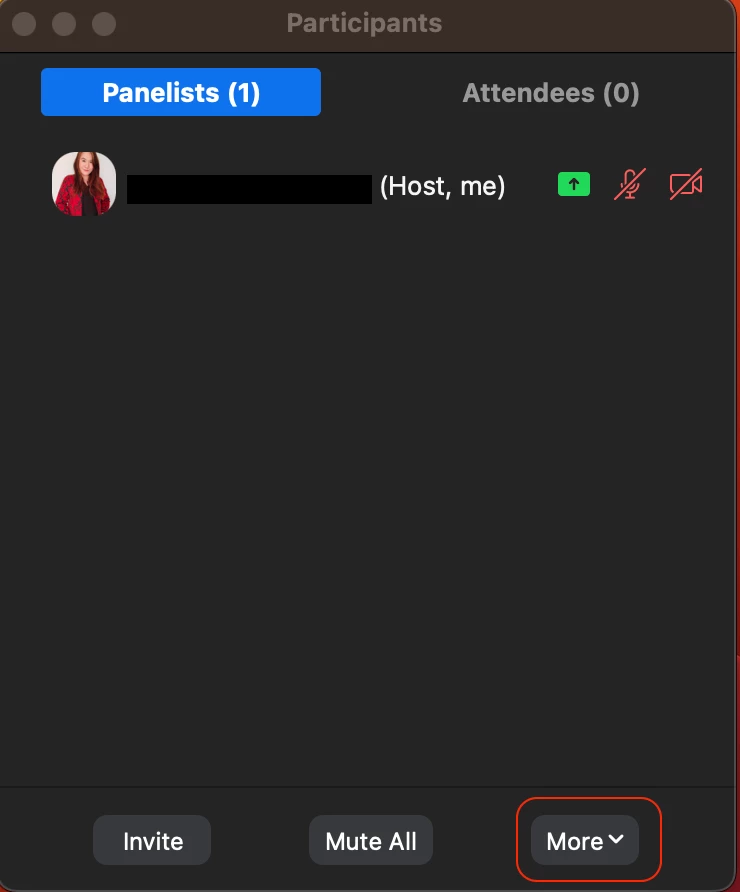
    Also, when sharing screen, you can change the video layout by clicking Participants then More. Scroll down to Attendee View and select Side-by-side: Speaker.


    Let me know if it worked!

    16 replies

    crissyd
    Employee
    Employee
    Jul 5, 2023 5:14 PM UTC

    @groupecapitole During you practice session, make sure to adjust your video layout by clicking View then select Speaker for My View (host view) and Side-by-side: Speaker for the Attendee View.

    Attendees will be able to view the shared screen on the left hand side, and see the speaker on the right hand side of the screen.


    I hope this helps.

    Translate
    Newcomer
    Aug 29, 2023 8:24 PM UTC

    When I go to view, I don't have "side-by-side: speaker" as an option.  how do I get that option?


    Translate
    Ray_Harwood
    Partner
    Partner
    Aug 29, 2023 8:26 PM UTC

    The Side-by-Side options only show when screen sharing is in progress.

    Translate
    Explorer
    Jul 6, 2023 7:41 AM UTC

    Hey - thanks so much for taking the time.

    I have tried what you said and bumped into 2 challenges:

    - when not sharing anything, the view menu does not offer the side by side option (see screenshot)


    - when sharing a screen, I cannot find the view menu...


    Many many thanks for your support

    Translate
    crissyd
    Employee
    crissydAnswer
    Employee
    Jul 7, 2023 1:25 AM UTC

    @groupecapitole Side-by-side: Speaker for the Attendee View is only available when you're sharing your screen that's why you can't see it in the options.


    Also, when sharing screen, you can change the video layout by clicking Participants then More. Scroll down to Attendee View and select Side-by-side: Speaker.


    Let me know if it worked!

    Translate
    Ray_Harwood
    Partner
    Partner
    Jul 7, 2023 2:07 AM UTC

    Excellent answer, @crissyd.  It took me months to figure this out, though I suspect part of that time, it wasn’t even in the Participants -> More menu. The only way I could do it was either log in on another machine as Co-Host, or enable Dual Monitors. So happy now that many switches are available in multiple places!

    Translate
    Explorer
    Jul 7, 2023 7:11 AM UTC

    Thanks so much @crissyd - it worked! 🙏

    Translate