Explorer
Aug 15, 2023 6:14 PM UTC
Solved

Can't install Zoom on Mac Ventura 13.4.1 (c) with Apple chip

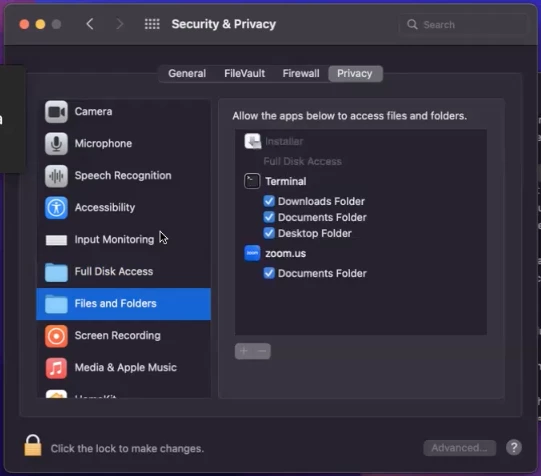
Hi all -- I am unable to install Zoom on my desktop Mac. I confirmed I'm downloading the correct version. I read through some of the other threads and allowed full disk access to Installer; however, I am unable to allow Installer access to files and folders (as suggested) -- it is grayed out. I've rebooted several times. Anyone have any ideas? I attached two screen shots -- one of the message I get when the installation fails, and one of the grayed out files and folder option. Thanks so much. 
RN11_2Answer
Community Manager
Aug 15, 2023 7:43 PM UTC

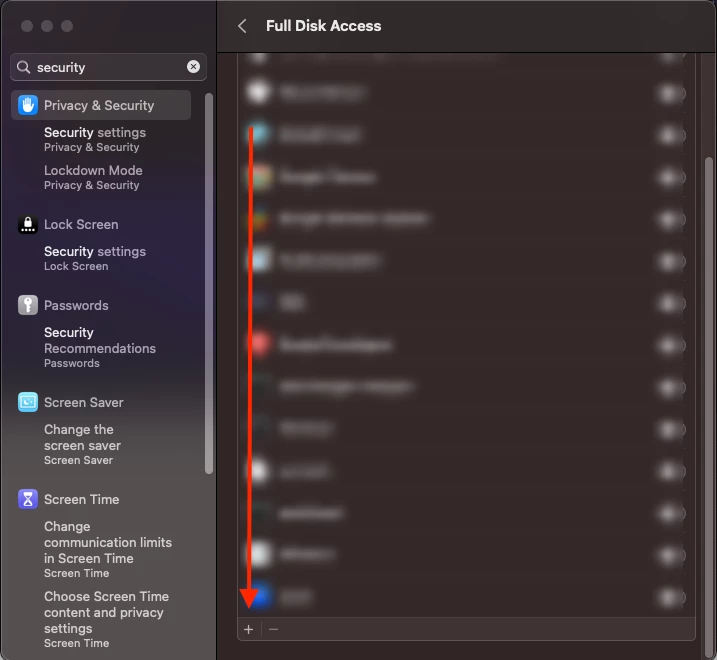
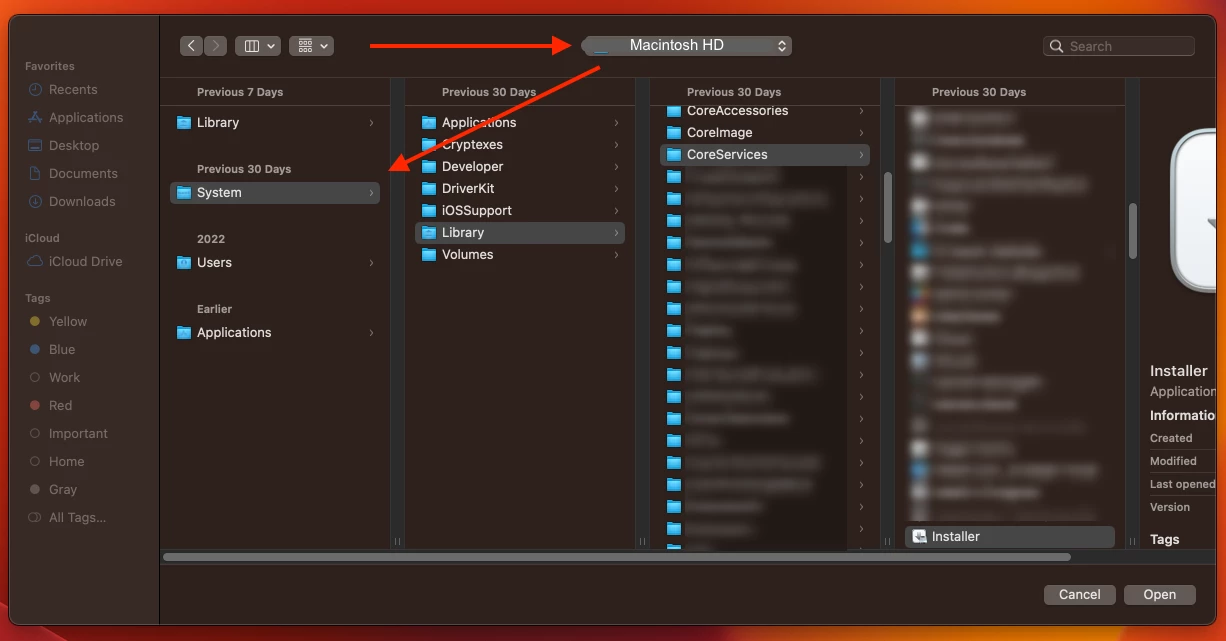
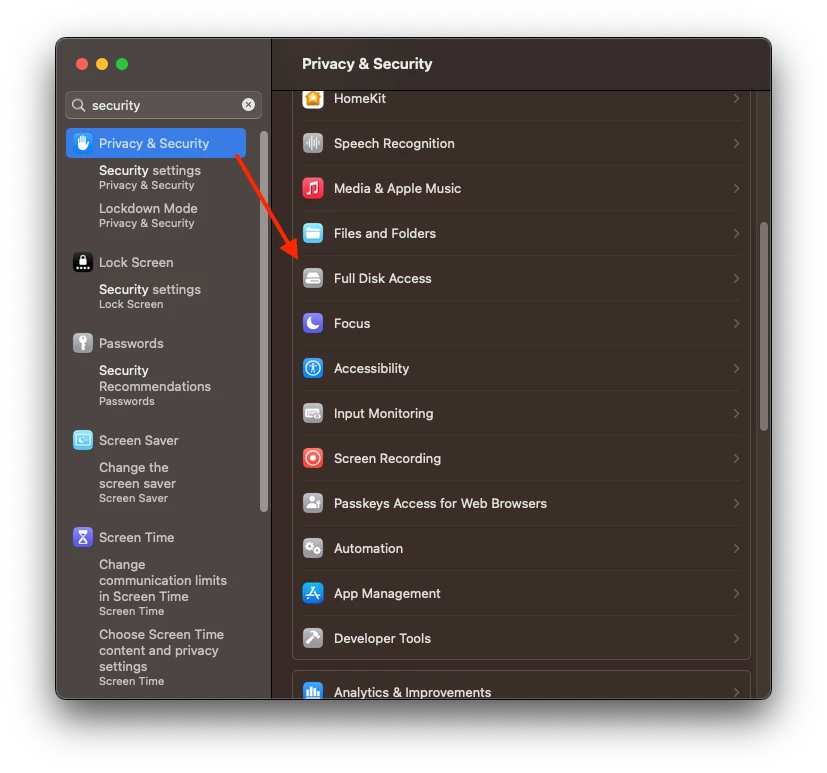
Hi @atiekay is see you have the iOS App Installer, rather than the installer. Below I took some screenshots for a visual of where to add this. If this option is not enabled, the installation of other applications of pkg will also fail to install on Mac OS 13. https://discussions.apple.com/thread/254317428


1. Starting by accessing the system settings > Privacy & Security > Full Disk Access

2. Scroll down, or you may not have to, but click the " + " symbol.


3. Select Macintosh HD from the dropdown selector in Finder, and following the file path for the 'installer'.


4. From there, you can see installer within the files and folders within security & privacy.


5. Attempt to reinstall. 


Let me know if this helps! 🙂

4 replies

RN11_2Answer
Community Manager
Aug 15, 2023 7:43 PM UTC

Hi @atiekay is see you have the iOS App Installer, rather than the installer. Below I took some screenshots for a visual of where to add this. If this option is not enabled, the installation of other applications of pkg will also fail to install on Mac OS 13. https://discussions.apple.com/thread/254317428


1. Starting by accessing the system settings > Privacy & Security > Full Disk Access

2. Scroll down, or you may not have to, but click the " + " symbol.


3. Select Macintosh HD from the dropdown selector in Finder, and following the file path for the 'installer'.


4. From there, you can see installer within the files and folders within security & privacy.


5. Attempt to reinstall. 


Let me know if this helps! 🙂

Translate
Newcomer
Aug 19, 2023 8:19 PM UTC

THIS WORKED!   Thank you a thousand times!

Translate
atiekayAuthor
Explorer
Aug 21, 2023 9:38 PM UTC

Worked for me, too! Thank you. 

Translate
Newcomer
Feb 11, 2024 2:18 AM UTC

Worked for me as well.  Please update the support article at https://support.zoom.com/hc/en/article?id=zm_kb&sysparm_article=KB0058029 to the procedure outlined above.  I was not able to follow the written instructions on that page.  The procedure above is the same procedure as stated in the referenced support article but there are no pictures and it's not well written.   This procedure is very easy to follow and had me up and running in 2 minutes.  A picture is worth a thousand words!

Translate